

Introduction to Unresponsive Touch Screen Problems
Smartphones have become essential tools in everyday life, so when the touch screen stops responding, it can feel like everything comes to a halt. Understanding how to fix phone screen unresponsive touch issues is crucial for maintaining your device’s usability. These problems can occur on both Android and iPhone devices and may be caused by software bugs, physical damage, or environmental factors.
In many cases, touchscreen issues are temporary and can be fixed using simple troubleshooting methods. However, some situations may require deeper investigation or professional repair. This guide is designed to walk you through all possible solutions, from basic fixes to advanced methods.
Common signs of the issue:
- Touch inputs are ignored or delayed
- Screen responds only in certain areas
- Random touches (ghost touch) occur
- Device becomes completely unresponsive
Understanding Why Touch Screens Stop Working
Before applying fixes, it is important to understand why touch screens become unresponsive. Modern smartphones use capacitive touch technology, which relies on electrical signals from your fingers. Any disruption in this process can lead to problems.
Identifying the cause helps in choosing the most effective solution and prevents unnecessary repairs.
Main causes include:
- Software glitches or system crashes
- Physical damage such as cracks
- Water or moisture exposure
- Dirt, oil, or debris on the screen
- Faulty screen protectors or accessories
- Overheating or battery-related issues
Quick Fixes That Often Solve the Problem Instantly
Many touchscreen issues can be resolved with quick and simple actions. These methods are easy to try and often fix temporary glitches without any technical knowledge.
These quick fixes should always be your first step before moving to advanced solutions.
Try these quick solutions:
- Restart your phone normally
- Force restart if the screen is frozen
- Remove screen protector temporarily
- Clean the screen with a soft cloth
- Let the phone cool down if overheated
- Close unused apps running in the background
Restarting and Force Restarting Your Device
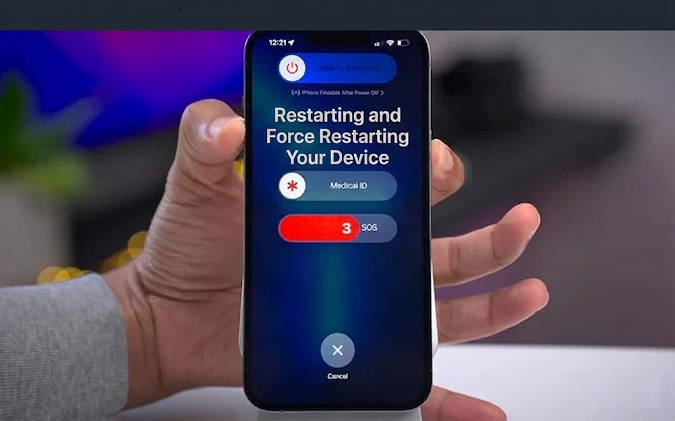
Restarting your device refreshes the system and clears temporary bugs that may affect touch functionality. A force restart is especially useful when the screen is completely frozen and does not respond to touch.
This method is safe and does not delete any data, making it a reliable first troubleshooting step.
Steps to restart:
- Press and hold the power button
- Select restart or reboot option
- Wait for the device to turn on again
Steps for force restart:
- Press and hold power + volume button
- Keep holding until the logo appears
- Release buttons and wait for reboot
Cleaning the Screen for Better Responsiveness
A dirty or oily screen can significantly reduce touch sensitivity. Dust, sweat, and grease create a barrier that interferes with the touchscreen’s ability to detect input.
Proper cleaning not only improves responsiveness but also enhances overall screen clarity.
Cleaning tips:
- Use a microfiber cloth
- Avoid harsh chemicals or alcohol-based cleaners
- Slightly dampen the cloth if necessary
- Clean edges and corners carefully
Removing Accessories That Interfere with Touch
Screen protectors and how to fix phone screen unresponsive touch cases can sometimes cause touch issues, especially if they are of poor quality or improperly installed. Thick or damaged protectors may block touch signals.
Testing your phone without accessories can help determine if they are the source of the problem.
What to check:
- Remove tempered glass or plastic protector
- Check for air bubbles or cracks
- Try using the phone without a case
- Replace with high-quality accessories
Checking for Software Updates and Fixing Bugs
Software updates often include bug fixes and performance improvements that can resolve touchscreen issues. Running outdated software may lead to compatibility problems.
Keeping your phone updated ensures that it runs smoothly and efficiently.
How to update:
- Go to Settings
- Select Software Update
- Download and install updates
- Restart the device after installation
Using Safe Mode to Detect Problematic Apps

Sometimes, third-party apps can interfere with your phone’s touch functionality. Safe mode disables all external apps, allowing you to identify the root cause.
If the touchscreen works properly in safe mode, an app is likely responsible.
Steps to enable safe mode:
- Press and hold the power button
- Tap and hold “Power Off” option
- Select Safe Mode
- Restart normally to exit safe mode
Factory Reset: The Ultimate Software Fix
A factory reset is one of the most effective ways to fix persistent software-related issues. It restores your phone to its original settings, removing all data and apps.
This method should be used as a last resort after trying all other solutions.
Steps to perform a reset:
- Back up your data
- Go to Settings
- Select Reset options
- Choose Factory Reset
- Confirm and wait for completion
Hardware Issues and When to Seek Repair
If none of the software fixes work, the problem may be hardware-related. Physical damage, such as a cracked screen or internal component failure, can affect touch functionality.
In such cases, professional repair is often necessary.
Signs of hardware problems:
- Visible cracks or damage
- Dead zones on the screen
- Flickering display
- No response even after reset
Comparison of Different Fix Methods
Below is a table comparing the effectiveness and difficulty of various solutions:
| Method | Difficulty Level | Effectiveness | Cost |
|---|---|---|---|
| Restart | Easy | High | Free |
| Cleaning Screen | Easy | Medium | Free |
| Software Update | Easy | High | Free |
| Safe Mode | Medium | Medium | Free |
| Factory Reset | Medium | High | Free |
| Professional Repair | Hard | Very High | Paid |
Key insights:
- Start with simple methods first
- Use reset only if necessary
- Consider repair for hardware issues
Preventing Touchscreen Problems in the Future
Preventive care can help avoid touchscreen issues and extend the life of your device. Simple habits can make a big difference in maintaining performance.
Taking care of your phone reduces the chances of encountering similar problems again.
Prevention tips:
- Use a high-quality screen protector
- Avoid exposing the phone to water
- Clean the screen regularly
- Keep software updated
- Avoid dropping the device
When It’s Time to Replace Your Phone
Sometimes, repairing a phone may not be worth the cost, especially if it is old or severely damaged. In such cases, replacing the device may be a better option.
Consider the overall condition and repair cost before making a decision.
Signs you need a replacement:
- Frequent touchscreen failures
- High repair costs
- Outdated hardware
- Poor battery performance
Conclusion
Learning how to fix phone screen unresponsive touch issues can save you time, money, and frustration. From simple solutions like restarting your device and cleaning the screen to advanced methods like factory resets and professional repairs, there are many ways to restore your phone’s functionality.
By identifying the root cause and applying the appropriate fix, you can resolve most touchscreen problems effectively. Regular maintenance and careful handling will help ensure a smooth and responsive experience in the future.
